Getting started
There are a shocking number of steps you need to take to get access to your region's passwords. I'm told it's for security reasons. The platform we use (Vaultwarden) dictates this flow and there's nothing we can do about it. Well, we can document it.
Requesting Access
A region admin will need to make a request to a Nation admin to add you to the password vault for your region. If you do not know who your admins are, check the Org Map.
In the password vault, there are two levels of permission: read-only and read/write. Read/write users can view, edit, and delete saved passwords. Read-only users can see all of the passwords, but not edit or delete them. Make sure your region admin requests the appropriate level of access.
The Invite
Once the Nation admin has processed your request, you will get an email like the one below.
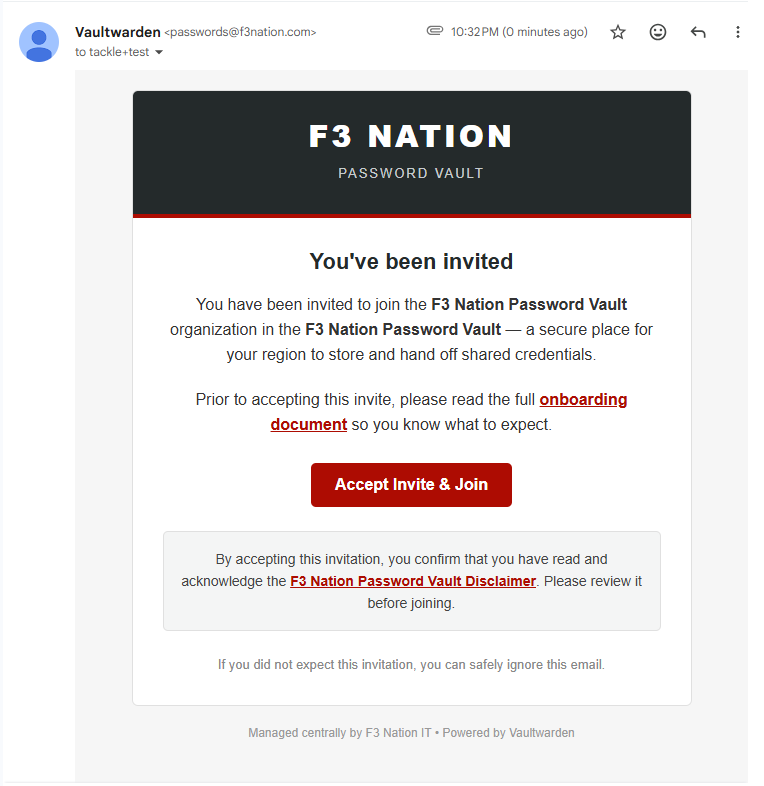
Please read the entire email. In particular, note that by accepting the invite you are confirming that you read and acknowledged the Disclaimer. I highly suggest you read it. It was written by a guy with no legal training; so theoretically it's understandable. And there are some very important tidbits in there.
Once you've read the disclaimer, hit the big Accept invite & Join button.
Master Password
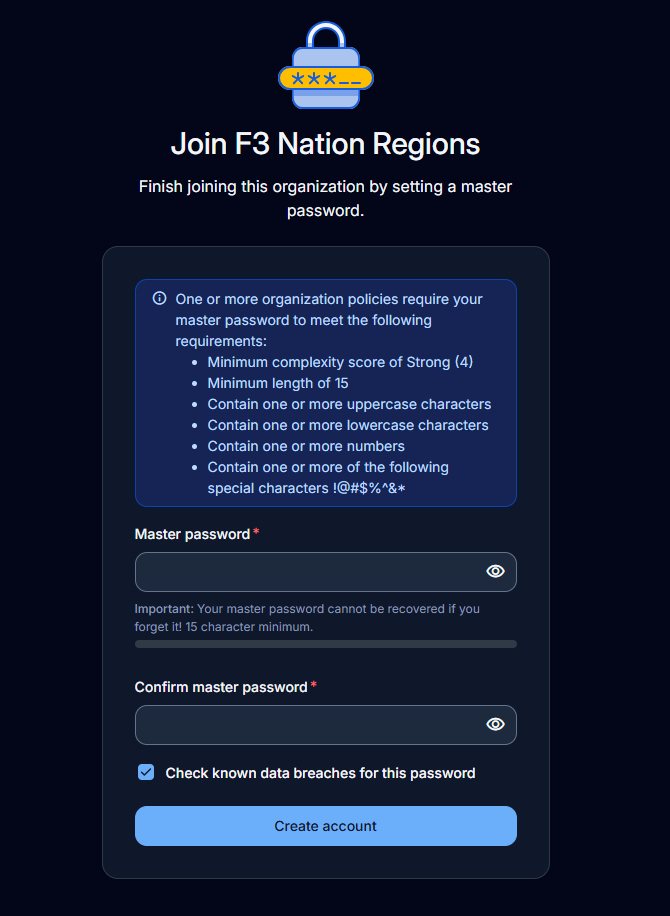
When you click the button in the email, it will take you to passwords.f3nation.com and ask you to create a master password. This is the password you will use every time you want to access the password vault.
Do not lose this password. There is no "Forgot password" link: if you forget it, you'll have to reach out to a Nation admin to reset it.
Do not share this password. This account is for you and only you. If someone else in your region needs an account, we can make them one. Activity in the password vault is logged and tracked. Don't let others get you in trouble.
There are complexity and length requirements for the password. The webpage will show you what they are. I highly recommend you use a sentence or memorable phrase as your password and not random characters.
When you're done, hit Create account.
The Not-Quite Confirmation
This is the confusing part. After you create an account, you're going to be logged in, but you won't be able to see any passwords. You'll also get an email saying your account was created. But clicking on the link in the email will take you to the same passwordless place.
So far, all that's happened is you now have an account for the password vault platform. But your account has not been onboarded to your region yet.
After an account is created, it has to be confirmed before it can access passwords. This is one of the stipulations that Vaultwarden forces on us. Confirmation is automatic: a sync runs every hour and confirms anyone who has a password role for their region. If you're still not confirmed after a couple of hours, reach out to your region admin to check that your role is set up.
The Real Confirmation!
Once your account is confirmed, you'll get an email like the one below saying you were confirmed.
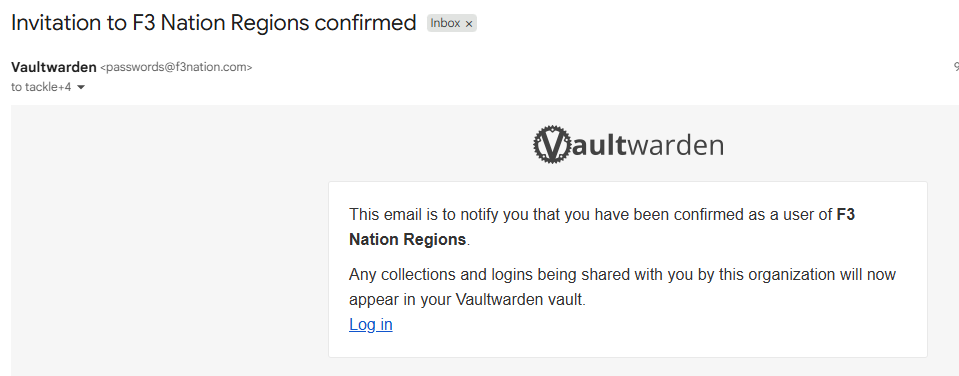
Now when you log in, you should see all your region's passwords. If not, let your region Admin know and they'll help get things sorted.
Next steps
- Using the vault: finding, adding and sharing passwords.
- Two-step login: required if you're an admin of your region's vault, recommended for everyone.
Welcome!
Different Regions
You can have access to multiple regions, you can also have your access taken away. Once your access is changed, it is reflected within the hour. If you lose your last password role, you're removed from the organization; if a role comes back later, you'll get a new invite email. There are no manual approvals or extra steps to take. The above process is only for getting access to your first region.